


Get up to €5,000 + 400 Free Spins
Join Rockstar Casino today and claim our massive 4-stage welcome package across your first four deposits.
LoginRockstar Casino Sign In Guide
If you are ready to jump on stage with us, Rockstar Casino login is your shortcut back to your games, bonuses, and withdrawals in a couple of clicks. Here is exactly how to register at Rockstar Casino, log in, and keep your account safe without any fuss.
Getting Started at Rockstar Casino
Let's begin with a straightforward explanation. Rockstar operates a single account that encompasses all their casino games, including live gaming and crash titles. The process is simple: you register once with Rockstar Casino, verify your email, and then you can log in using the same email and password each time.
Big plus, registration is built to be super quick, support says it usually takes under 30 seconds if you have your email and password ready. Once you are in, you can head straight to deposits, pick your currency, and start playing for real money whenever you like.
How to Create a Rockstar Casino Account
You do not need to overthink the Rockstar Casino signup process; it is basically three fields and one email confirmation. Still, we will walk you through step by step so you do not miss anything important, like currency choice or terms acceptance.
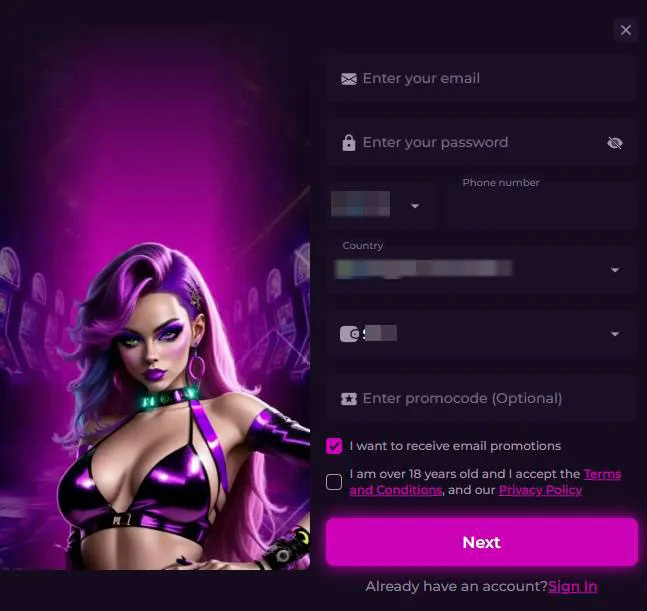
Step-by-Step Registration
On a desktop or mobile browser, you will see the Sign Up button in the upper-right corner of the Rockstar Casino site header. Tap or click it to open the registration form.
Here is what you do next:
- Enter your active email address. This becomes your main Rockstar Casino login and “Registered Email Address” for all communication.
- Create a strong password that only you know and keep it confidential.
- Choose your account currency; keep in mind you cannot change it later for this account.
- Tick the box to confirm you are over 18 and accept the Terms and Conditions of Rockstar.
- Hit the Create Account or Sign Up button to submit the Rockstar Casino form.
According to the help center, if you follow these steps, registration “won’t take more than 30 seconds” in normal conditions.
Email Confirmation
Right after signing up, Rockstar Casino sends a confirmation email to the address you entered. You need this step to fully activate the account.
- Open your inbox and look for the message from Rockstar Casino.
- If you do not see it, check spam or promotions.
- Click the confirmation link inside the email to verify ownership.
If the email address is unreachable or wrong, your account can be suspended until you provide a valid one, because Rockstar identifies and communicates with you through this email.
Rockstar Casino Login Process
Now that you are registered and confirmed, logging in to Rockstar Casino is the easy part. Every session starts the same way: email plus password, and from there, you get full access to all sections depending on your verification status at Rockstar Casino.
Logging In on Desktop
On the desktop, the login button sits in the Rockstar Casino header on the top right. You can see Log In and Sign Up side by side when you are not signed in.
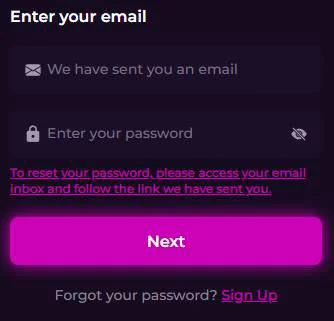
To log in to Rockstar Casino on a desktop:
- Click the Log In button.
- Enter your registered email.
- Enter your password exactly as you created it.
- Click Log In to access your Rockstar Casino profile, games, and cashier.
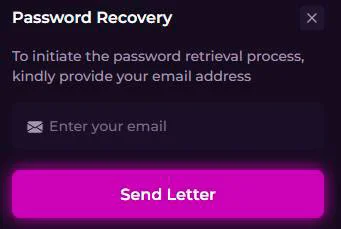
If you forget your password, use the “Forgot Password” link in the same login window, type your registration email, then follow the reset link that arrives within a few seconds (sometimes a bit longer depending on your email provider).
Logging In on Mobile via PWA
Here’s the cool part: Rockstar has a PWA-style mobile app setup, so you can “install” the site right to your home screen. The main layout shows an APP banner with “HOW TO INSTALL” that links to the install page.
Logging in through the PWA feels just like using the website:
- Open the Rockstar icon from your home screen after you install the app shortcut.
- Tap Log In in the top area of the interface.
- Enter the same email and password you use on your desktop.
- Tap Log In, and you are back in your account with mobile‑optimised games and a cashier.
Because the PWA just wraps the website, all your bonuses, balances, and history are the same on mobile as they are on desktop.
Your Account: What's Inside
Once you are logged in, all the important stuff sits under the Profile menu in the header. You will see the main entries for Personal Info, My Bonuses, and Withdrawal/History. Here you can also upload documents for Rockstar Casino verification.
These sections are where you update your data, activate offers, track every transaction, and manage responsible gaming settings like self-exclusion through support.
Personal Info & Profile Settings
The Profile section (linked as “profile/personal-info”) holds your core personal data and account settings. This includes your name, address, contact details, and sometimes additional info needed to satisfy KYC checks.
- You must keep these details accurate and up to date.
- The casino can request ID, proof of address, or extra documents to verify you.
- If you intentionally provide false info, your account can be suspended, and even legal action is possible.
Rockstar can also close or suspend accounts if they believe terms are not being followed or the integrity of the service is at risk, so keeping your profile legit is non‑negotiable.
My Bonuses Section
Another standout tab in your account is “My bonuses”, which you can reach directly from the header menu. This is where active, available, and completed bonuses are managed.
In My Bonuses, you can typically:
- See your current welcome, reload, or cashback bonuses and their progress.
- Check wagering status and expiry dates.
- Activate available promos that require manual opt-in or bonus codes.
Any bonus you accept is subject to separate bonus terms plus the main site Terms, so always double check wagering and bet limits before you grind through it.
Transaction History & Withdrawals
Under “Withdrawal” or “profile/history,” you find the transaction history section. This is where you track deposits, bets, wins, and cash-out requests in detail.
- You can submit withdrawal requests for cleared, unutilised funds according to the cashier limits.
- The minimum withdrawal amount per transaction is usually €10 or currency equivalent.
- Maximum withdrawal is typically €1,000 per day and €25,000 per month, with possible changes if you hit very big multipliers versus your deposits.
Support and the terms also remind you that withdrawals should go back to the same method you deposited from when possible, and extra ID checks may be required before payouts are approved.
Account Security & Recovery
Your Rockstar Casino login and password are your responsibility, so account security is a big part of the terms. You must keep your password secret, change it regularly, and never share it with anyone.
- If you suspect your account has been hacked or your email is compromised, you should notify support immediately.
- Rockstar can suspend your account while they verify your identity and secure access again.
- Until they are aware of the issue, you are responsible for all activity on the account, even if a third party accessed it.
For password recovery, you can always click “Forgot Password” on the login screen, enter your registration email, and follow the instructions in the reset email that gets sent to you.
FAQ
You Might Also Like

Rockstar Casino Bonuses - All Promotions
If you love squeezing extra value out of every spin, Rockstar Casino is pretty much your playground. With welcome deals, cashback, reloads,...
Rockstar Casino App - Install Guide
The Rockstar Casino application is the easy way to get into your favourite games without making the whole process feel like homework. You can install...